How to check your entire website’s spelling efficiently

The fastest way to check entire website spelling is to run an automated site scanner, set the language to British English (en-GB), supply your sitemap or start a crawl, and download the report. You can do all of that in minutes.
Here is the immediate action plan:
- Pick a cloud-based scanner such as Websitespellchecker — it offers a free scan of up to 50 pages with no account required.
- Set the language to en-GB before you start, so the dictionary flags “colour” and “organise” as correct rather than errors.
- Supply your sitemap URL or enter your domain and let the crawler do the work.
- Download the report as a CSV or PDF and start triaging.
Pro Tip: Run the free 50-page scan on your highest-traffic pages first. You will see real results within seconds and can decide whether a full-site scan is worth the investment before spending a penny.
Key takeaways
Automated sitewide spell checking with a UK English dictionary is the fastest, most reliable way to find and fix spelling errors across an entire website, and a free 50-page scan is enough to prove the value before committing to a full audit.
| Point | Details |
|---|---|
| Start with a free scan | Websitespellchecker scans up to 50 pages free, giving instant results with no account needed. |
| Set en-GB before you crawl | Choosing British English at the start prevents hundreds of false positives on correct UK spellings. |
| Triage by traffic, not alphabet | Fix errors on high-traffic and conversion pages first for the fastest impact on trust and rankings. |
| Custom dictionary cuts noise | Adding brand names and technical terms to your dictionary keeps reports focused on real errors. |
| Schedule regular scans | Monthly scans on active content and quarterly full-site audits prevent error backlogs from building. |
Table of Contents
- How does an automated website spell checker actually work?
- Step-by-step: how to run a full site spell check
- Which type of spell check tool fits your site?
- How to triage and fix spelling errors at scale
- What automated spell checkers miss, and how to reduce false positives
- What site-wide audits actually reveal in practice
- Websitespellchecker gives you a free scan to start with
- Sources
How does an automated website spell checker actually work?
Every sitewide spell check follows the same four-stage pipeline: crawl, parse, check, report. Understanding each stage helps you configure the tool correctly and interpret results with confidence.
Crawl. The scanner either reads your XML sitemap or follows links from your homepage, working through pages at a set depth. JavaScript-heavy sites need a scanner that renders pages in a headless browser; otherwise, content loaded dynamically after the initial HTML response is invisible to the crawler. Websitespellchecker’s WSSC-Bot handles this rendering step automatically.
Parse. Once a page is fetched, the tool extracts text from HTML nodes, meta titles, meta descriptions, and alt attributes. Scanning meta tags and alt text yields high returns because these elements appear directly in search results and assistive technologies. PDFs attached to the site may require optical character recognition (OCR) to extract text; not all tools include this by default. Navigation menus, footers, and CMS admin strings are typically excluded to reduce noise.
Check. Extracted text is passed through a dictionary engine. The W3C spellchecker API provides a standard integration point that many tools build on. The engine compares each token against the selected dictionary (en-GB for UK sites), applies grammar rules, and flags anomalies. Custom dictionaries let you pre-approve brand names, product codes, and technical terms before the scan runs.
Report. Flagged errors are grouped by URL, error type, and frequency, then exported as CSV or PDF. Tools that store scan history let you compare runs over time, so you can confirm that a fix actually stuck.
| Stage | What happens | What you configure |
|---|---|---|
| Crawl | Bot fetches pages via sitemap or link-following | Crawl depth, sitemap URL, JavaScript rendering |
| Parse | Text extracted from HTML, meta tags, alt text, PDFs | Content areas to include or exclude |
| Check | Tokens compared against dictionary and grammar rules | Language (en-GB), custom dictionary, ignore lists |
| Report | Errors grouped by URL and type, exported | Format (CSV/PDF), scan history retention |
Step-by-step: how to run a full site spell check
A structured workflow saves you from re-doing work and makes the results usable by the whole team.
Pre-scan checklist
- Choose your crawl method. Use your XML sitemap if it is up to date; fall back to full-crawl mode for sites where the sitemap is incomplete or stale.
- Set the language to en-GB. This single setting prevents hundreds of false positives on perfectly correct British spellings.
- Add custom dictionary entries for brand names, product SKUs, and technical terms you know are correct.
- Build an ignore list for any URL patterns you do not want scanned (staging paths, admin pages, third-party embed URLs).
- Confirm that JavaScript rendering is enabled if your site uses a framework such as React or Vue.
Run a test scan first
Scan 10–50 pages before committing to a full crawl. This validates your language settings and custom dictionary. If you see obvious false positives at this stage, fix the dictionary now rather than filtering hundreds of them from the full report later. Practitioners on community forums consistently report this scan-tune-rescan pattern as the fastest path to a clean, usable report.
Scale to the full site
Once the test scan looks clean, run the complete crawl. Export results as CSV for your content team to triage and as PDF for stakeholders who need a summary. The website spell check report format from Websitespellchecker includes affected URLs, error counts, and suggested corrections in a layout designed for non-technical reviewers.
Re-scan and track
After fixes are applied, re-scan the affected pages and compare against the previous run in your scan history. This confirms corrections are live and catches any regressions introduced during editing.
Pro Tip: Schedule a lightweight scan of your top 50 pages every month and a full-site scan every quarter. Monthly scans catch new content errors quickly; quarterly scans surface structural issues across the whole site.
Which type of spell check tool fits your site?
Three tool categories cover most use cases, and each suits a different team setup.
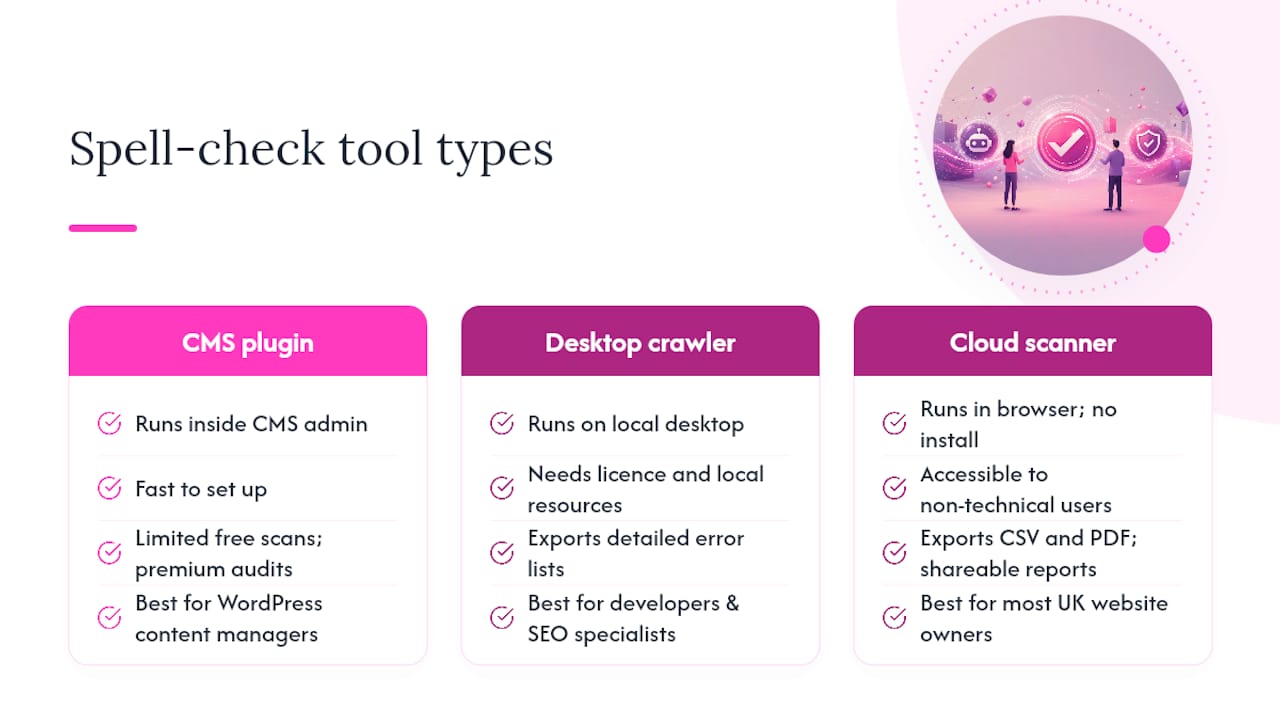
CMS plugins install directly into WordPress or similar platforms and scan content from within the admin interface. The WP Spell Check plugin offers a free tier that scans a limited number of pages, with premium options for full-site audits. Plugins are fast to set up but are tied to one platform and rarely handle content outside the CMS database, such as PDFs or externally hosted pages. For teams managing WordPress sites specifically, they are a practical starting point.
Desktop crawlers such as Screaming Frog’s SEO Spider are powerful for large, complex sites. Screaming Frog supports 39 languages and exports detailed error lists for triage. The trade-off is that desktop tools need a local licence, local computing resources, and some technical familiarity. They suit developers and SEO specialists running deep audits rather than content managers doing routine checks.
Cloud scanners run entirely in a browser, require no installation, and are accessible to non-technical team members. SortSite by PowerMapper is one example of a cloud or desktop scanner that supports multiple language variants and configurable dictionaries. Cloud tools also make scheduling and sharing results straightforward.
For most UK website owners, developers, and content managers, a cloud scanner is the right starting point. It requires no software installation, supports en-GB out of the box, and produces shareable reports without needing a developer to run the tool. Websitespellchecker fits this profile precisely: free 50-page scan, AI-powered detection, CSV and PDF exports, scan history, and a pay-per-scan credit model that means you only pay when you need a full audit.
The free vs paid comparison on Websitespellchecker explains when the free tier covers your needs and when credits make sense. For teams managing multiple client sites, the developers and agencies plan adds bulk workflow features. If your site is very large and you need deep technical crawl control, a desktop crawler may be worth the licence cost. For a simple WordPress blog, the CMS plugin route is perfectly adequate.
How to triage and fix spelling errors at scale
Raw scan output is only useful if you can act on it quickly. A structured triage process turns a long error list into a manageable repair project.
- Export and filter. Download the CSV and sort by page traffic or conversion value. Errors on your homepage, product pages, and landing pages should be fixed before errors on archived blog posts.
- Group by error type. Separate genuine spelling mistakes from grammar flags and formatting issues. This lets you assign tasks to the right person: a content editor handles copy errors, a developer fixes template strings, and a localisation reviewer checks language variants on multilingual pages.
- Decide: fix or add to dictionary. Not every flagged item needs editing. Brand names, product codes, and technical abbreviations belong in the custom dictionary. Actual misspellings belong in the source content. Mixing these up wastes time and clutters your dictionary.
- Apply bulk fixes where possible. If the same misspelling appears across 30 pages because it lives in a shared template or widget, fix it once at the source rather than editing each page individually.
- Re-scan and verify. After fixes are live, re-scan the affected URLs and check the scan history to confirm the error count has dropped. Share the updated PDF report with stakeholders to close the loop.
Correct copy also supports web accessibility: screen readers and assistive technologies rely on accurate text, so fixing spelling errors directly improves the experience for users with visual impairments.
- Prioritise pages by organic traffic and conversion rate, not alphabetical order.
- Keep a change log so you can trace which editor fixed which error and when.
- Update the custom dictionary as a team, not individually, to keep scan results consistent across runs.
What automated spell checkers miss, and how to reduce false positives
Automated tools are accurate but not perfect. Knowing their limits helps you set realistic expectations and keep results clean.
Common false positives include brand names, product SKUs, technical terms, hyphenated compound words, and text inside code snippets. A scanner that reads a <code> block as body copy will flag every variable name as a misspelling. The most effective way to reduce this noise quickly is to curate a custom dictionary and build targeted ignore lists. Open-source spell engines such as Aspell use the same dictionary-and-ignore-list approach, which is why this pattern appears across almost every tool category.
Multilingual sites need careful configuration. If your pages carry correct lang attributes (e.g. lang="fr" for French sections), a well-configured scanner will switch dictionaries per page. Without those attributes, the tool applies one dictionary to everything and flags correctly spelled foreign words as errors. Fix the lang attributes first; then configure per-page language overrides in the scanner for any pages that still need them.
Content types with real limits include images with embedded text, interactive content that only appears after a user action, and PDFs that lack a text layer. Images in design files, for instance, carry text that no HTML parser can read without OCR. These areas need a manual check or a tool with OCR support. The AI-powered scanning in Websitespellchecker v2 improves detection accuracy on ambiguous cases, though image-embedded text still benefits from a manual review pass.

Pro Tip: Disable grammar rules that do not apply to your content type. A technical documentation site does not need passive-voice warnings; a marketing site might. Targeted rule sets keep your report focused on genuine errors.
There is also a subtler problem: why your website still has spelling errors even after a manual review. Human proofreaders miss errors in familiar text because the brain autocorrects during reading. Automated scans do not have this bias, which is precisely why they catch what humans overlook.
What site-wide audits actually reveal in practice
The most common surprise in a real site-wide audit is not the homepage. It is the pages that nobody has touched in two years: old blog posts, archived product descriptions, and auto-generated category pages. These accumulate errors quietly because they fall outside the regular editorial cycle.
Alt text is the second most overlooked area. Content teams focus on body copy and headlines, but alt attributes on images often contain rushed, unreviewed text. Because alt text feeds directly into search snippets and screen readers, errors there carry disproportionate weight.
The operational lesson is straightforward: schedule monthly quick scans of your active content and a full-site scan every quarter. Monthly scans catch errors in new content before they compound; quarterly scans surface the forgotten corners. Teams that treat spell checking as a one-off task consistently find more errors per scan than teams that run it routinely, simply because the backlog grows between checks.
Websitespellchecker gives you a free scan to start with
Spelling errors chip away at trust faster than most site owners realise. A single typo on a pricing page or a misspelled product name in a meta description can cost you a sale or a search ranking. Websitespellchecker removes that risk without a monthly subscription or a long-term commitment.
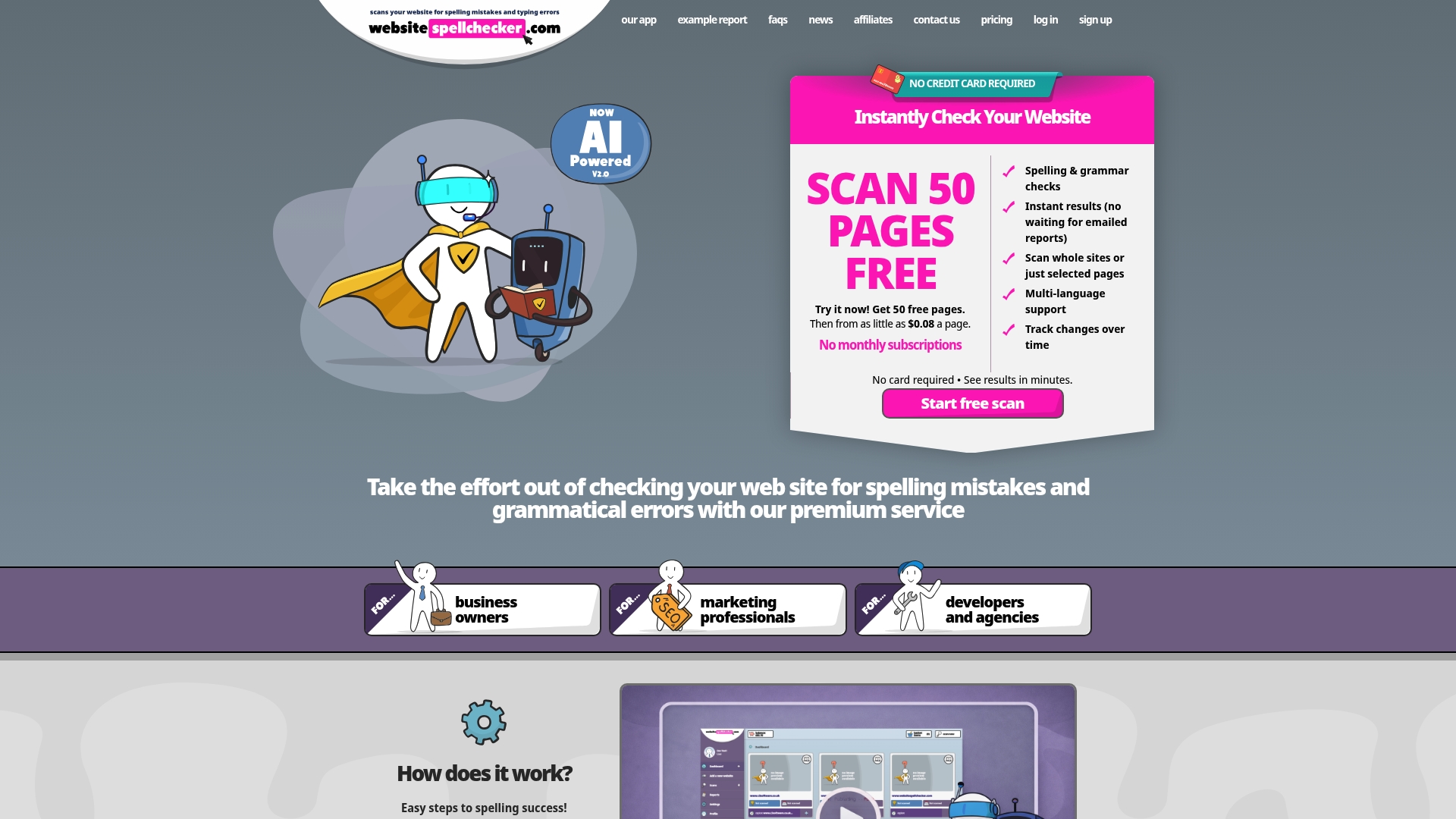
The free scan covers up to 50 pages and delivers results instantly. You get AI-powered detection of spelling mistakes, grammar errors, awkward phrasing, and missing words, with full en-GB dictionary support. Reports export as CSV for your content team and PDF for stakeholders. Scan history lets you track fixes over time and prove progress to clients or management. When you need more, you buy credits and pay per scan — no recurring fees, no unused allowance rolling over.
For business owners who need a clean, professional site and for marketing professionals managing content at scale, Websitespellchecker is the practical next step. Run your free 50-page scan at Websitespellchecker and see your results in seconds.
Sources
The resources below cover the technical standards, tool documentation, and platform guidance referenced throughout this article.
- Spell Checker for Websites - SortSite · PowerMapper Software