Custom dictionary for website spellcheckers: your complete guide

A custom dictionary for a website spellchecker is a user-defined word list that tells automated site scans which brand names, product identifiers, and industry acronyms are valid. Without one, every scan flags your product names, internal codes, and specialist terms as errors, burying real mistakes under a pile of false positives. Adding a term suppresses it in all future scans; existing reports stay unchanged until you run a fresh scan.
Most professional tools, including Websitespellchecker, let teams add words from a scan report one at a time or upload a batch via CSV. Under the hood, server-side implementations typically use Hunspell-style .txt files, a dynamic-custom-dictionaries flag for hot-reload, and a global.txt for language-independent terms. The key distinction: a custom dictionary is an override layer, not a grammar fix. It tells the scanner “this token is intentional,” nothing more.
- A word added to a group-level dictionary is suppressed for every future scan on that account.
- Existing reports do not update automatically; the flagged words will clear only after a fresh scan.
- A
dynamic-custom-dictionariessetting, if supported, allows dictionaries to reload without restarting the service.
Key takeaways
A well-governed custom dictionary is the difference between a scan report teams trust and one they ignore.
| Point | Details |
|---|---|
| Add high-value terms only | Limit entries to product names, trademarks, and high-frequency industry terms to avoid masking real errors. |
| Centralise at group level | Use group-level dictionaries so all team members see consistent results, not just the person who added a word locally. |
| Verify with startup logs | After deployment, check the service log for “dictionaries found” and confirm the word count before running scans. |
| Re-scan to clear past flags | Existing reports do not update automatically; run a fresh scan after any dictionary change to reflect the new terms. |
| Audit quarterly | Review and remove stale entries every quarter to keep the dictionary lean and the scan results reliable. |
| Websitespellchecker | Supports group-level dictionaries, UI add-to-dictionary on error cards, and startup log verification for whole-site scans. |
Table of Contents
- What is a custom dictionary website spellchecker and why should your team use one?
- How custom dictionaries work technically
- How content and marketing teams add words without developer help
- Developer and ops steps: deploy and hot-reload file-based dictionaries
- Governance and lifecycle management for custom dictionaries
- Verification and troubleshooting checklist
- When a custom dictionary is not the right tool
- Websitespellchecker makes custom dictionaries practical for whole-site scans
- Sources
What is a custom dictionary website spellchecker and why should your team use one?
False positives are the single biggest reason teams stop trusting automated scan results. When a scanner flags “SaaS”, “Websitespellchecker”, or “OAuth2” as errors, reviewers start ignoring the report, and real typos slip through. A well-maintained custom dictionary fixes that by keeping the noise low and the signal high.
Core benefits:
- Fewer false positives mean reviewers focus on genuine errors rather than dismissing reports.
- Faster review cycles: a clean report takes minutes to action; a noisy one takes hours.
- Consistent brand rendering across languages, so “Websitespellchecker” never appears as a suggested correction.
- Shared group-level dictionaries mean every team member sees the same results, not just the person who added a word locally.
What a custom dictionary will not do:
- It will not fix grammar, awkward phrasing, or missing words.
- It will not catch a misspelling of your own brand name if you add the misspelling to the list.
- It will not substitute for editorial training when recurring quality problems stem from writer habits.
Pro Tip: Start with your highest-risk terms: product names, UI labels, legal phrases, and registered trademarks. Resist the urge to add every unusual token you encounter. Dictionary bloat, an uncontrolled list that grows without review, masks real errors and defeats the purpose of scanning.
How custom dictionaries work technically
The file format is straightforward. Server-side implementations use language-coded .txt files (for example en.txt or en-GB.txt) and a global.txt for terms that apply across all languages. Each file must be UTF-8 encoded, with one word per line and no blank lines or comments. A file saved with a byte-order mark (BOM) or in a different encoding will silently fail to load.
Dictionaries sit in a directory defined by the custom-dictionaries-path configuration key. On startup, the service reads that directory, loads every matching file, and writes a log entry reporting how many dictionaries it found and the total word count. That log entry is your primary verification signal.
Static vs dynamic loading:
When the dynamic-custom-dictionaries flag is set to true, the service watches the dictionary directory and reloads files without a restart. For fast-moving content teams, this removes a significant operational bottleneck. Without it, every dictionary update requires a planned service restart and a log check to confirm the new words loaded.
Some tools also support a per-document API approach. The Igalia SpellCheckCustomDictionary proposal describes addWords() and removeWords() methods that suppress false positives within a single document session without writing to any persistent or OS-level dictionary. This is transient by design: the suppression ends when the tab closes.
Pro Tip: Treat the startup log as your health check. If the log reports zero dictionaries found after a deploy, the path is wrong or the files are misnamed. Fix the path before investigating encoding.
How content and marketing teams add words without developer help
You do not need access to the server to manage a custom dictionary. Websitespellchecker surfaces the add-to-dictionary action directly on each spelling error card in the scan report.
Step-by-step UI flow:
- Open the scan report and locate the flagged word in the results list.
- Click the spelling error card to expand it.
- Select Add to dictionary to add the term to the group-level dictionary.
- Confirm the action. The word is suppressed for all future scans on the account.
- Run a fresh scan of the affected pages to clear the flag from the current report.
Permission model: only the report author can add words via the UI by default. Viewers can see the flags but cannot modify the dictionary. This prevents uncontrolled additions from multiple team members and keeps the list auditable.
Checklist for content teams:
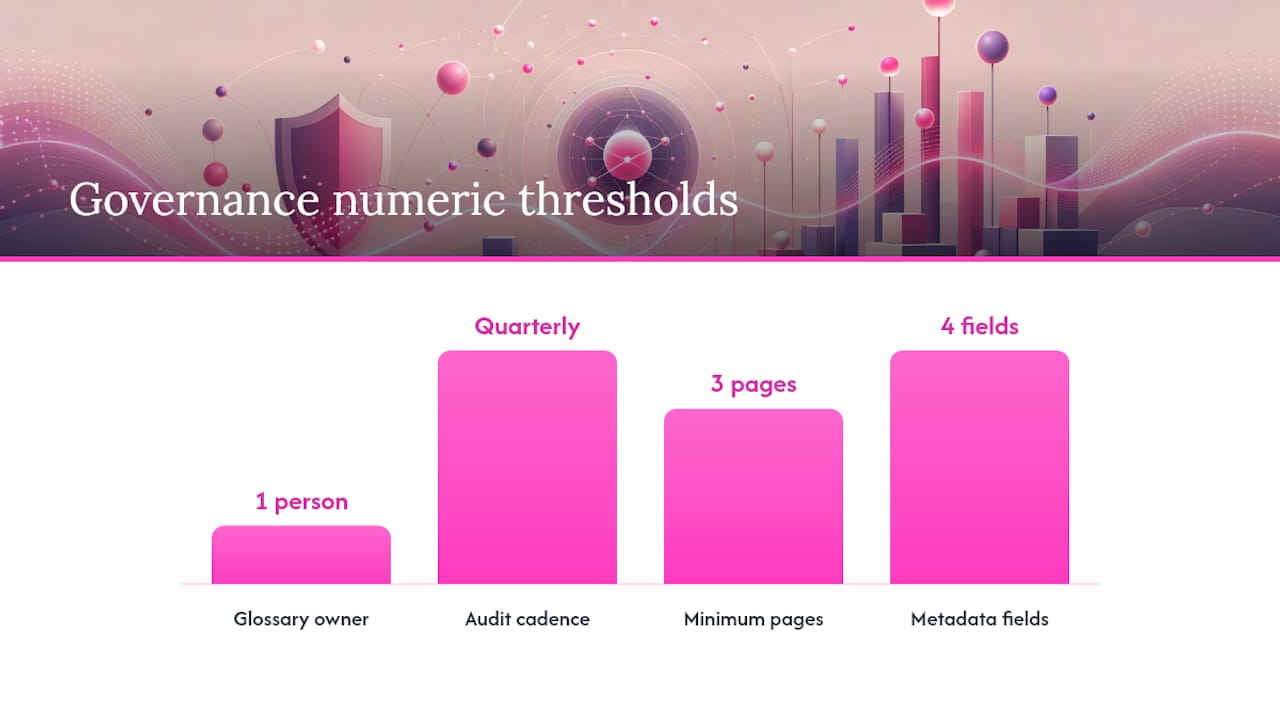
- Nominate a single glossary owner who approves all additions.
- Map your highest-frequency terms before the first scan: product names, campaign codes, legal phrases.
- Schedule a quarterly review to remove terms that are no longer in use.
- Use bulk CSV upload for initial population when the list exceeds twenty or thirty terms.
Many professional scanners support both the one-by-one UI path and bulk CSV upload, so the initial setup does not have to be done word by word.
Developer and ops steps: deploy and hot-reload file-based dictionaries
Deployment flow:
- Assemble your word list in a plain text editor. One word per line, UTF-8 without BOM, no blank lines.
- Name the file with the appropriate language code (
en-GB.txt) or useglobal.txtfor cross-language terms. - Place the file in the directory defined by
custom-dictionaries-path. - If running in a container, mount that directory as a volume so the service can read it at runtime.
- Set
ephox.spelling.dynamic-custom-dictionariestotrueif your deployment supports hot-reload. - Restart the service (or wait for the hot-reload cycle) and inspect the startup log for the dictionary count.
Generating a candidate word list from site content:
A practical starting point is to extract unique unmatched words from your content folder, sort and deduplicate them, then review the output before adding anything to the dictionary. A workflow documented for Hugo sites uses a command pattern like:
npx cspell --words-only --unique content/**/*.md | sort > .dictionary
Review the output file before registering it. Every word in that list is a candidate, not an automatic addition.
Advanced syntax for precise matching:
CSpell’s dictionaryDefinitions supports markers like ~ (case-insensitive), + (must combine), and * (wildcard) to control how tokens match. This prevents a short acronym from accidentally suppressing a longer real word that shares the same root.
Pro Tip: In a CI/CD pipeline, run the word-extraction step nightly, output candidates to a pull request, and let the glossary owner approve before merging. The spellchecker picks up the updated file on the next deploy or hot-reload cycle.
| Task | Command pattern | Notes |
|---|---|---|
| Extract candidates | cspell --words-only --unique |
Review before adding |
| Sort and deduplicate | sort -u |
Removes near-duplicates |
| Register in config | dictionaryDefinitions block |
Point to file path |
| Verify load | Check startup log | Confirm word count |
Governance and lifecycle management for custom dictionaries
A dictionary without governance grows into a liability. The goal is a lean, auditable list that a new team member can understand and maintain.
- Ownership: one named glossary owner approves all additions. Proposals come via a shared spreadsheet or pull request, not ad hoc messages.
- Naming conventions: use language-code naming (
en-GB.txt) for language-specific files andglobal.txtfor brand names that appear in every language version of the site. - Metadata: keep a companion CSV or changelog with the term, the date added, the requester, and the reason. This makes quarterly audits fast.
- Audit cadence: review the full list every quarter. Remove terms for discontinued products, retired campaigns, and one-off project codes.
- Policy: limit entries to high-frequency, high-risk terms. If a term appears on fewer than three pages and is not a registered trademark, it probably does not belong in the dictionary.
- Do-not-translate flags: for multilingual sites, mark brand names in the glossary as “do not translate” so localisation teams do not create variant spellings that then need separate dictionary entries.
When building out terminology for a multilingual site, a curated vocabulary approach can help teams identify which terms genuinely need cross-language protection versus which ones are handled by the core engine already.
Verification and troubleshooting checklist
Troubleshooting table:
| Symptom | Likely cause | Corrective action |
|---|---|---|
| Word still flagged after adding | Wrong file name or language code | Check filename matches the page language; confirm UTF-8 without BOM |
| Zero dictionaries found in log | Incorrect custom-dictionaries-path |
Verify path and container mount; check file permissions |
| Dictionary loaded but word still flagged | Word added to wrong language file | Move term to global.txt or the correct language file |
| Hot-reload not working | dynamic-custom-dictionaries not set to true |
Enable flag and restart once to activate; subsequent changes reload automatically |
| Past report still shows the flag | Re-scan not run | Re-scan affected pages; existing reports do not update retroactively |
Verification steps:
- After deployment, open the service startup log and search for “dictionaries found.”
- Confirm the reported word count matches the number of entries in your files.
- Run a targeted re-scan of two or three pages that previously showed the false positive.
- Check the new report: the term should no longer appear as a flag.
- If the flag persists, re-examine the file encoding and language-code filename before investigating anything else.
When a custom dictionary is not the right tool
Not every false positive belongs in a dictionary. Adding the wrong terms creates a list that hides real problems.
- Rare one-off typos: if a word appears once and it is genuinely wrong, fix it in the source content. Do not add it to the dictionary to silence the flag.
- Uncontrolled bulk additions: importing hundreds of terms without review creates a list that suppresses legitimate errors. A large, unvetted list is worse than no list.
- Masking content-quality problems: if the same awkward phrase keeps appearing across pages, that is an editorial problem. A dictionary entry will not improve the writing; it will hide the symptom.
- Multilingual consistency: for approved translations and localisation terminology, a translation glossary is the right tool. Glossaries store the approved translation, part of speech, and usage notes, and can be exported as CSV or TBX for use across localisation workflows.
- Repeated full sentences: translation memory handles repeated sentence-level content far better than a word list.
Websitespellchecker makes custom dictionaries practical for whole-site scans
Running a site-wide scan and seeing hundreds of false positives for your own product names is a frustrating way to start. Websitespellchecker is built for exactly this situation: group-level custom dictionaries mean every team member sees the same clean results, not just the person who happened to add a word in their browser session. The UI surfaces the add-to-dictionary action directly on each error card, so content managers can act without raising a ticket.
For developers and agencies, the technical integration supports language-specific and global dictionary files, startup logs that confirm dictionary load and word count, and scan history that lets you track how your false-positive rate drops as the dictionary matures. The AI-powered scanning engine covers entire sites in one pass, so you are not running page-by-page checks manually. Run a free scan today and see how many of your current flags disappear once your brand terms are in place.
The case for getting this right from the start
Controlled custom dictionaries do more than tidy up a report. They build trust in the scanning process itself, which is the precondition for teams actually acting on results. When reviewers know the tool understands their terminology, they stop dismissing flags and start fixing them. Websitespellchecker scans whole sites instantly, tracks changes over time, and surfaces results in shareable reports, so the governance model described in this guide has a production-ready tool to sit behind it.