Save Scan Credits: 6 Steps to Exclude URLs in Website SpellChecker

Exclude unwanted pages in Website SpellChecker with path patterns and seed exclusions, then lock non-public hosts behind a password or IP allowlist so nobody stumbles onto them. Robots.txt will not do that job on its own. Once configured, Website SpellChecker skips those URLs on every future scan, which trims the noise from your reports and stops you burning credits on pages nobody should be reading anyway.
TL;DR:
- Excluding internal or staging pages via path patterns and seed URLs prevents wasting credits on low-value sites and reduces irrelevant flags in reports.
- Using specific pattern rules, such as wildcards or regex, helps accurately exclude directories like login, admin, or search results, avoiding common mistakes like case sensitivity.
- Verifying exclusions through test scans and log checks ensures none of the hidden pages reappear, especially when implementing authentication or noindex signals.
- Robots.txt cannot reliably prevent page discovery or indexing, so combining it with password protection and IP allowlisting provides real privacy controls.
- Implementing precise exclusions focuses audit reports on critical content, cutting down unnecessary scans and highlighting actual issues affecting your public-facing copy.
Table of Contents
- Which pages should you exclude from a scan?
- How to exclude URLs in Website SpellChecker: step-by-step
- Pattern examples and the mistakes that break them
- How do you verify your exclusions actually worked?
- Why robots.txt alone won’t keep pages private
- How exclusions make your audits more useful
- Ready to configure your own exclusion rules?
- Sources
Which pages should you exclude from a scan?
Not every page on your site deserves the same attention. Some pages are noisy by design, and scanning them wastes credits without telling you anything useful about your brand’s writing quality.
The usual suspects fall into a handful of categories:
- Staging or test environments — near-duplicates of your live site that skew results and waste credits.
- Login and account pages — forms and dashboards with little running copy to check.
- Admin areas — internal tools that customers never see.
- Dynamic search results — pages generated on the fly from user queries, often with thin or repeated text.
- Faceted navigation and filter combinations — the same product list rendered dozens of ways.
- Deep pagination — page 47 of a blog archive rarely needs the same scrutiny as your homepage.
- Comments and user-generated content — text you did not write and cannot easily edit.
- Private files — PDFs, internal documents, or anything not meant for public eyes.
Leaving these in means your scan spends time and money crawling pages that add nothing to your quality picture, and it buries genuine issues on your money pages under a pile of irrelevant flags. There is also a subtler risk: staging exclusion rules occasionally get copied wholesale into production configs during a deployment, which can quietly stop your live site from being checked at all. Keep exclusion rules scoped to their environment, and double check them after any migration.
How to exclude URLs in Website SpellChecker: step-by-step
Website SpellChecker keeps its include and exclude controls in the scan configuration panel, where you set up a new audit or edit an existing one. You have two main tools here: seed lists for individual pages you want guaranteed inclusion (or exclusion) of, and path patterns for entire directories or groups of URLs. Seed lists are best for one-off pages, such as a single staging demo page linked from your homepage. Path patterns handle everything else, from /admin/ folders to search result pages.
Here’s the practical sequence:
- Open your scan settings and locate the exclude field, usually sitting alongside the include options.
- Add path patterns for directories you want skipped, such as
/staging/or/login/. - Add individual seed URLs for one-off pages that a pattern would not catch cleanly.
- Save the configuration before running anything.
- Run a small test scan to confirm the excluded pages do not appear in the results.
- Review the report to check your credibility-critical pages, titles, headings, meta text, and core body copy, are still being picked up correctly.
If Website SpellChecker supports content-area exclusions, you can also mark out specific regions of a page, such as a comments widget or a cookie banner, using CSS selectors rather than excluding the whole URL. This is worth using when a page is mostly fine but has one noisy section dragging its score down.
Pro Tip: Before changing anything on a live audit template, duplicate the configuration first. That way, if a new exclusion pattern behaves unexpectedly, you can roll back in seconds instead of rebuilding the whole setup from memory.
Pattern examples and the mistakes that break them
Path patterns are simpler than most people expect, but they punish sloppiness. A pattern like /staging/* excludes everything under that folder, while /search* catches any URL beginning with “search,” parameters and all. The asterisk acts as a wildcard; some platforms also support a trailing $ to mean “ends exactly here,” which is handy when you want to exclude /login but not /login-help.
Regular expressions give you more precision when path patterns alone cannot express what you need. Invicti’s excluded-paths documentation shows PCRE examples for exactly this, including a pattern such as (/dir1/dir2(/.*)?$) to exclude a directory and everything beneath it, two or more levels deep.
The mistakes that trip people up are almost always the same ones:
- Including the protocol or domain (
https://example.com/staging/*) when the field expects a path only. - Getting casing wrong, since Sitebulb’s documentation confirms most path matching is case-sensitive.
- Reaching for regex syntax where plain path patterns are expected, or vice versa.
- Dropping the leading slash, which quietly breaks the whole rule.
| Pattern type | Example | Matches |
|---|---|---|
| Simple wildcard | /staging/* |
Everything under /staging/ |
| Anchored end | /login$ |
Exactly /login, not /login-help |
| Directory + subfolders | /admin/* |
/admin/ and every page beneath it |
| Query parameter catch | /search* |
/search, /search?q=shoes, and similar |
Faceted filters and pagination usually need the wildcard approach, since the query string varies but the base path stays constant.
How do you verify your exclusions actually worked?
Configuring an exclusion is only half the job. Confirming it took effect is what stops a bad pattern from quietly hiding pages you actually wanted checked.
- Run a focused test scan with the new exclusion pattern active, then compare page count and credit usage against a scan without it.
- Check your seed URLs are still appearing in results if you added inclusion rules alongside your exclusions.
- Read the scan log to confirm the excluded paths were skipped rather than silently included.
- Scan your report for any credibility-critical pages that vanished by accident, a sign your pattern was too broad.
If a staging URL has already been indexed somewhere, resist the urge to lock it down with authentication straight away. NKY SEO’s guidance on staging environments recommends letting crawlers see a noindex signal or using a removal tool first, then adding authentication once the page has actually dropped from the index. Add the login wall too early and you can leave a stale, indexed version of a page floating around with no way for search engines to update it. The technical site audit checklist is a useful companion for building this verification step into a repeatable routine.
Why robots.txt alone won’t keep pages private
Robots.txt tells well-behaved crawlers where not to go, but it does not stop a page being discovered through an external link, and it does not prevent indexing outright. SEO-Kreativ’s robots.txt guide is blunt about this limitation: treat it as a polite request, not a lock. You can check your own file’s behaviour with a robots.txt validator before relying on it for anything sensitive.
For anything genuinely private, staging sites, internal dashboards, client previews, layer on real controls:
- HTTP authentication or IP allowlisting as your primary barrier, so unauthorised visitors and scanners cannot reach the page at all.
- An X-Robots-Tag noindex header as backup on any host that cannot sit behind a login.
- Environment-driven configuration, so staging-specific rules are generated from environment variables rather than a file that might get committed and deployed to production by mistake.
Excluding faceted navigation and deep pagination pays off here too. Allowing every filter combination to be crawled causes scans to balloon in size and burn unnecessary credits, particularly on larger e-commerce catalogues where a handful of filters can generate thousands of near-duplicate URLs.
How exclusions make your audits more useful
Website SpellChecker’s scan configuration, downloadable reports, and scan history tracking exist for exactly this problem: giving you control over what gets checked so the results actually mean something. Its AI-driven detection is only as useful as the pages you point it at.
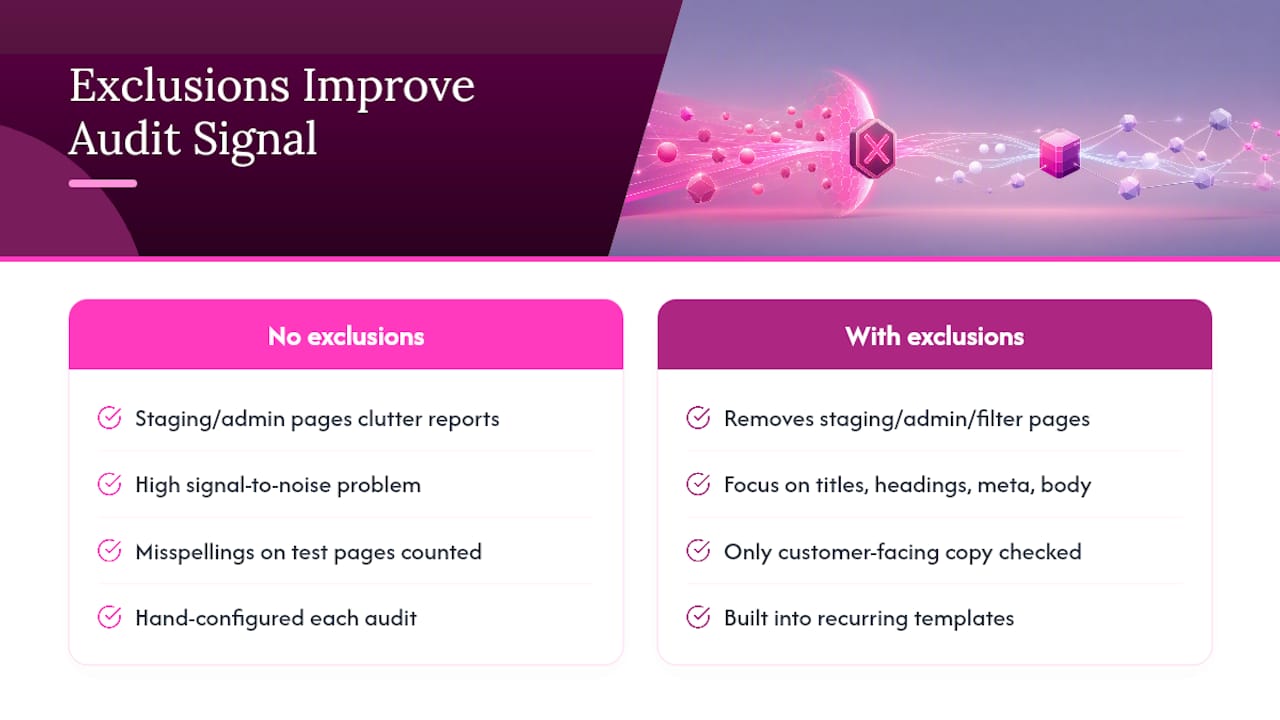
The real payoff of a good exclusion list is signal-to-noise. When staging pages, admin screens, and filter combinations stop cluttering your report, what’s left is the copy that actually shapes how customers see your brand: titles, headings, meta descriptions, and core body text. That is where a stray typo does reputational damage; a misspelling on an internal test page does not.
If you manage audits for multiple sites or clients, build exclusions into your recurring templates rather than reconfiguring from scratch each time. It keeps handoffs consistent and stops a noisy page creeping back into a report six months later because somebody forgot the original rule.
— Website
Ready to configure your own exclusion rules?
Website SpellChecker supports path exclusions, seed lists, and custom content-area exclusions, so you can shape a scan around exactly the pages that matter to your brand.
If you have been running scans without any exclusions at all, you have almost certainly been paying to check pages nobody will ever read, staging clones, admin screens, filtered product lists, while genuine errors on your homepage or pricing page compete for attention in a cluttered report. Setting exclusions up properly changes that: fewer pages scanned, lower credit spend, and a report that puts your credibility-critical copy front and centre.
Start on the Website SpellChecker for business owners page to see how scan configuration works in practice, or head straight to the Website SpellChecker app and run a free scan to test your first exclusion pattern. If you want to see exactly what changes in your output once exclusions are active, the website spell check report page walks through what a cleaned-up report looks like.
Sources
- Include & exclude URLs settings (Sitebulb support)
- robots.txt guide — why robots.txt is limited (SEO-Kreativ)
- Excluded paths (Invicti docs)
- Staging site SEO: keep test sites out of search (NKY SEO)