How to find and fix website grammar errors site‑wide

The fastest, most reliable way to find and fix website grammar errors is to run an AI powered, site‑wide scan, then work through a prioritised list of corrections in your CMS. Two things separate a good scan from a shallow one: per‑page sentence context so you can see exactly where an error sits, and multi‑language support if your site serves more than one market.
Once the scan is done, act fast:
- Run the initial crawl across your whole domain.
- Export the report and sort issues by priority.
- Fix the top errors on your highest‑traffic pages first.
Pro Tip: Start with your homepage, pricing page, and top landing pages. A typo on a low‑traffic blog post costs you far less than one on the page converting your leads.
Ready to see what a full scan turns up? Try a site‑wide scan and get your first report in minutes.
Key Takeaways
Site‑wide AI scanning finds and contextualises grammar errors across an entire domain faster and more reliably than manual review or single‑page editors.
| Point | Details |
|---|---|
| Scan before you edit | Run a full domain crawl first so you fix based on real data, not guesswork. |
| Prioritise by impact | Fix errors on checkout pages, landing pages, and homepages before archived content. |
| Configure before scanning | Add brand terms to a custom dictionary to cut false positives dramatically. |
| Build in continuous QA | Re‑scan after fixes and track scan history to catch reintroduced errors. |
| Use a site‑wide crawler | Website SpellChecker offers per‑page sentence context, multi‑language scans, and a free tier to start. |
Table of Contents
- How does website grammar checking actually work?
- Which tools should you actually use?
- How do you audit and fix grammar errors across a whole site?
- Which grammar errors should you fix first?
- How do you build grammar checks into your regular workflow?
- What does a site‑wide grammar audit cost and how long does it take?
- Why do automated crawlers outperform manual checks?
- What do teams get wrong when fixing grammar site‑wide?
- Try a site‑wide scan and stop guessing where your errors are
- Sources
How does website grammar checking actually work?
Three approaches cover most situations, and they are not interchangeable. A single‑text editor checks whatever you paste into it, one page at a time. A browser or CMS extension flags errors as you type, live, inside your editing screen. A site crawler visits every page on your domain and reports every error, in context, across the whole site.
The gap between them is scope. An editor or extension only ever sees what’s in front of you right now, so ten‑year‑old blog posts and forgotten legacy pages stay invisible. A crawler like Screaming Frog’s spelling and grammar checker can check content across up to 39 languages and returns results with per‑page, per‑sentence context, which matters when a page has thirty paragraphs and one bad sentence.
- Editors and extensions: best for drafting new content.
- CMS plugins: good for catching errors before you hit publish.
- Crawlers: the only option that audits your entire existing site.
Pro Tip: If your team publishes daily, run a quick editor check before every post goes live, but schedule a full crawler scan monthly to catch what slips through.
Which tools should you actually use?
Most teams get the best results from layering three tools rather than picking just one: a quick editor for drafting, a CMS plugin or extension for live editing, and a scheduled site crawler for full audits. Each one plugs a gap the others leave open.
Before choosing a crawler, weigh these decision points:
- Site size — a ten‑page brochure site has very different needs from a 5,000‑page ecommerce catalogue.
- Number of languages — if your site serves multiple markets, confirm the tool supports each one properly.
- Update frequency — daily publishers need more frequent scans than a site that changes twice a year.
- Reporting needs — do you need downloadable reports for stakeholders, or just a dashboard?
- Integration requirements — API access, sitemap ingestion, and login authentication all matter for larger builds.
What separates a genuinely useful crawler from a basic checker comes down to the outputs:
- Per‑page sentence context, not just a flagged word.
- Scan history so you can track whether errors reappear.
- Custom dictionary support to stop brand terms getting flagged repeatedly.
- Exportable, shareable reports for developers or clients.
A solo site owner might only need a quick editor and an occasional crawl. A marketing team managing dozens of landing pages needs scan history and exportable reports. An agency handling multiple client sites needs all of that plus API access, which is where a dedicated tool like Website SpellChecker’s developer and agency option earns its place.
How do you audit and fix grammar errors across a whole site?
Start with scope. Decide whether you’re auditing the entire domain, a subdomain, or a specific set of paths, and pick which languages need checking. Add brand names, product terms, and industry jargon to a custom dictionary before you scan, or you’ll spend hours dismissing false positives.
- Run the initial scan. Crawl the full site, including pages behind a login if your workflow needs it.
- Export and triage. Sort flagged issues by page traffic and business impact. A grammar error on your checkout page outranks one on an archived press release.
- Apply fixes. Route simple typos to editorial staff and structural issues (broken sentence logic, missing words in templated content) to developers.
- QA and re‑scan. Confirm each fix landed correctly, check for false positives, and keep your scan history so you can spot recurring problems.
Turn this into a repeatable checklist your team can drop straight into a managed ongoing support service and ticketing system:
- Set scan scope and languages.
- Populate the custom dictionary.
- Run scan, export report.
- Assign fixes by page priority.
- Re‑scan and close tickets.
Pro Tip: Custom dictionaries and ignore rules cut noise dramatically. Without them, every scan re‑flags the same brand name or technical term, and your team stops trusting the reports.
Which grammar errors should you fix first?
Not every flagged issue deserves the same urgency. Prioritise the errors readers notice instantly and the ones search engines penalise hardest:
- Typos — a misspelled word on a hero banner undermines trust in seconds.
- Confused words — your/you’re, there/their/they’re, its/it’s.
- Subject‑verb agreement — “the results shows” instead of “the results show.”
- Punctuation — missing apostrophes, comma splices, stray semicolons.
- Missing words — often left behind after a quick content edit.
- Inconsistent branding — your product name spelled two different ways across the site.
Cambridge’s own list of common learner errors maps closely onto what shows up in real website audits: tense confusion, wrong word choice, and misplaced punctuation.
Visible spelling and grammar mistakes chip away at credibility fast, and even experienced writers routinely miss errors in their own copy, according to analysis of common website content mistakes.
How do you build grammar checks into your regular workflow?
Grammar QA works best as infrastructure, not a one‑off event. CMS plugins catch errors before publishing. CI/CD hooks and sitemap or API ingestion let a crawler re‑scan automatically whenever content changes. Scheduled crawls catch anything that slips through.
Route what you find into the systems you already use:
- Push flagged issues into your existing ticketing tool.
- Set a staging check before anything goes live.
- Track scan history to see whether the same errors keep reappearing.
- Set alerts for new errors introduced after a content update.
Guidance on checking grammar mistakes in website content covers how to fold this into editorial calendars without slowing publishing down.
What does a site‑wide grammar audit cost and how long does it take?
Timing scales with page count and language count more than anything else. A small site with a few dozen pages can be scanned in a couple of hours. A medium site typically takes a day. A large, multi‑language site can run several days to a week for a full first pass.
Pricing usually follows one of two shapes: pay‑per‑page or credit based scanning, often with a free tier for small checks, and paid scans once you need full reporting and scan history. Website SpellChecker’s free trial tier typically saves time compared with a purely manual review, since a human reading every page on a 500‑page site would take far longer than an automated crawl.
- Estimate effort as pages multiplied by languages multiplied by editorial complexity.
- Budget for a second, smaller re‑scan after your first fix pass to confirm nothing was missed.
Why do automated crawlers outperform manual checks?
Manual proofreading has a structural weakness: the person who wrote the copy is often the worst person to catch its mistakes, because practitioner research on proofreading shows writers repeatedly miss their own recurring errors. Automated verification adds a layer that catches what a tired, familiar eye skips over.

Scale is the other advantage. A crawler can check content across dozens of languages and thousands of pages in one pass, something no manual review team can match at the same speed. Screaming Frog’s spelling and grammar checker supports up to 39 languages and returns per‑page, per‑sentence detail rather than a vague “errors found” count.
Look for these features when you evaluate a crawler:
- Multi‑language detection, not just English.
- The ability to ignore words, disable irrelevant rules, and build a custom dictionary.
- Exportable reports you can hand to a developer or client without translation.
- Scan history so you can prove improvement over time.
The scale advantage is the real story here: where a manual reviewer might get through a handful of pages a day, a crawler processes an entire domain in one session, catching sentence‑level issues a skim‑read would miss entirely.
What do teams get wrong when fixing grammar site‑wide?
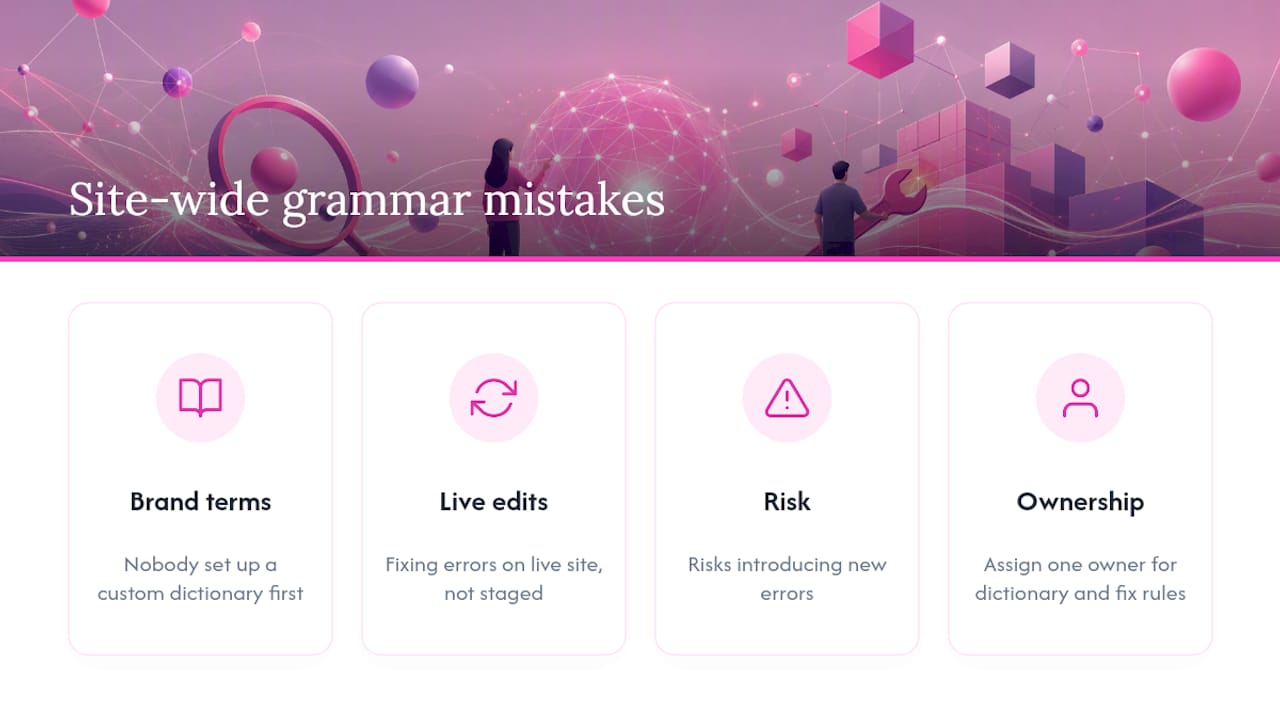
The most common mistake is over‑correcting brand terms because nobody set up a custom dictionary first. A close second is fixing errors directly on the live site instead of staging changes, which risks introducing new ones. Assign one person to own the dictionary and the fix rules.
Try a site‑wide scan and stop guessing where your errors are
Manual page‑by‑page checking simply cannot keep pace with a website that changes weekly, and that’s exactly the gap an AI powered, site‑wide scan closes. Website SpellChecker crawls your entire domain in one pass and hands you a report you can actually act on, rather than a vague warning that “some pages may have issues.”
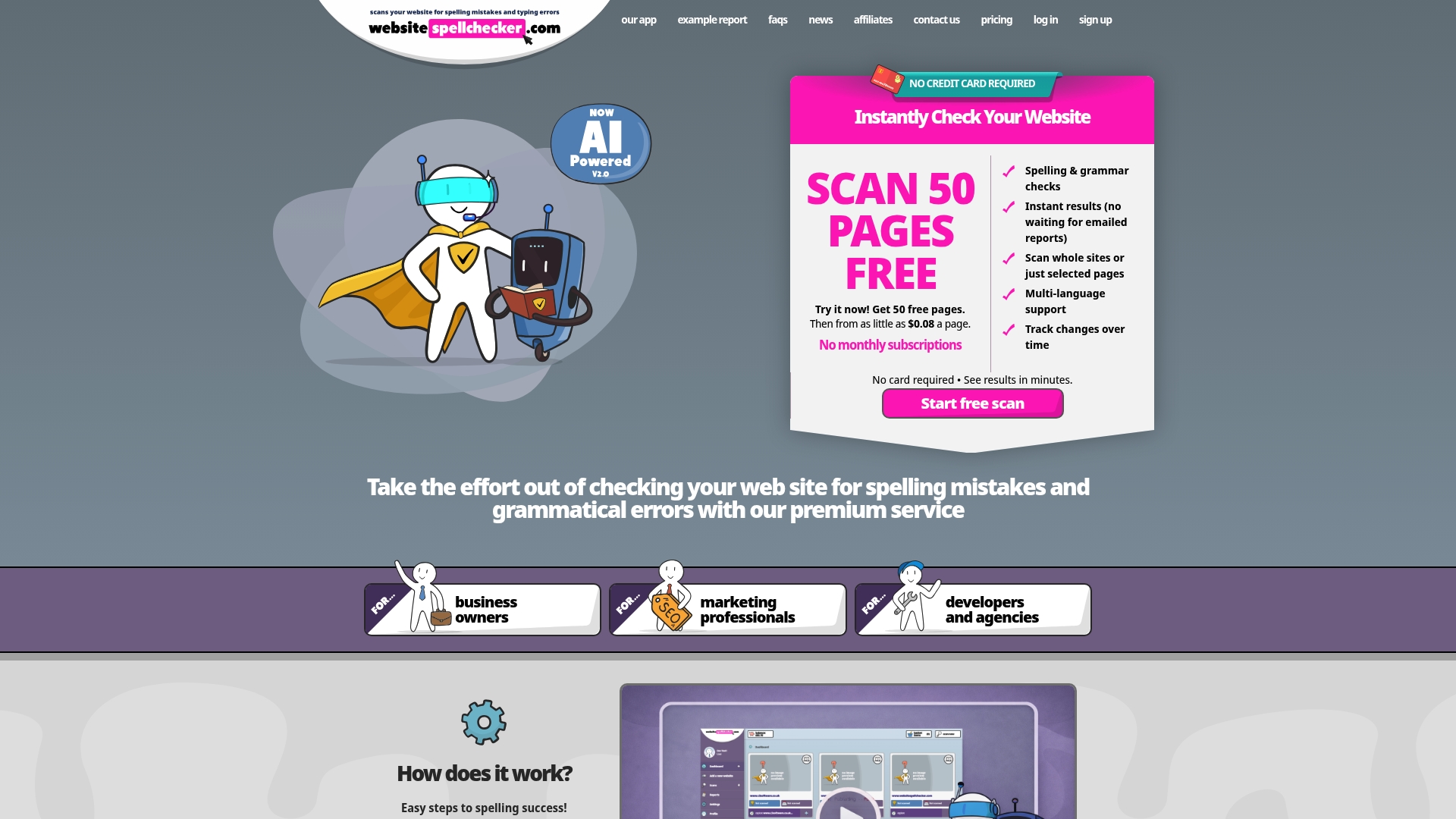
Three things make the reports worth your time: per‑page sentence context so you know exactly where each error sits, multi‑language support if you run content in more than one market, and scan history so you can prove errors are actually going down, not just moving around. Reports export as downloadable, shareable PDFs, which makes handing fixes to a developer or client painless.
If you’re a business owner running your own site, the business owner landing page walks through how to run your first scan and read the results. Marketing teams managing multiple campaigns and landing pages will get more from the marketing professionals page, which covers report exports and custom dictionaries in more depth. Either way, the free tier means you can see your first report before committing to anything. Start your free scan and see what’s actually live on your site right now.