WordPress accessibility checker: 2026 guide for UK sites

The best WordPress accessibility checker for UK websites
The Equalize Digital Accessibility Checker is the leading plugin for detecting and resolving accessibility issues on WordPress sites. It runs over 40 automated checks based on WCAG 2.2, scans content each time you save or publish, and shows results directly inside the WordPress editor without requiring you to leave the page.
For UK site owners, that combination of real-time feedback and WCAG 2.2 alignment is particularly practical. The plugin supports compliance efforts related to the European Accessibility Act (EAA), ADA, and Section 508, and it generates an accessibility statement you can publish on your site with a single click.
Key reasons it stands out:
- Real-time scanning triggered automatically on save or publish, with a manual scan button for mid-edit checks
- Over 40 WCAG 2.2 checks covering Level A, AA, and AAA success criteria
- Automated fixes for common barriers in themes and plugins, enabled with one click
- Accessibility statement generator with a footer insertion option
- Unlimited scanning with no URL-based limits or API fees, since scans run on your own server
- Trusted by major organisations, including NASA, and recognised with the 2023 Gaady Award
No automated tool can make your site fully accessible on its own. The plugin is honest about this: it flags issues, guides remediation, and supports your compliance workflow, but manual testing remains part of the picture.

What the Equalize Digital Accessibility Checker actually does
The plugin integrate into every major WordPress editing environment. Whether you use the block editor, the classic editor, or a metabox workflow, the checker surfaces issues in the same place you write content.
Here is what the feature set covers in practice:
- Automatic rescans on save, publish, or update, so reports stay current without extra effort
- Block editor sidebar panel showing issues alongside your content as you edit
- Metabox support below the content area in both block and classic editor views
- Front-end view for logged-in users, with an Accessibility Checker button to open the report on the live page
- Detailed issue documentation linked to the relevant WCAG success criterion, so you understand exactly what needs fixing and why
- 12 automated fixes available in the free version, addressing common theme and plugin barriers
- Dismiss workflow with notes, usernames, and timestamps, so your team can record manual reviews and keep reports clean
- Compatibility tested across major page builders, themes, and plugins, including Elementor, Divi, and Gutenberg
The plugin scans rendered content, not just the editor’s raw output. That matters because theme-level and page-builder-level issues only appear in the rendered HTML. Plugins that scan only the post content field miss a significant category of problems.
Pro Tip: Enable the automated fixes in the plugin settings immediately after activation. The 12 one-click fixes address the most common theme shortcomings, and applying them takes less than a minute. You can then focus your manual review time on the more complex issues the automated checks flag.
How to run a WordPress accessibility checker step by step
Getting started with the Equalize Digital Accessibility Checker takes only a few minutes. The process below applies to the free version available on WordPress.org.
- Install the plugin. In your WordPress dashboard, go to Plugins > Add New, search for “Accessibility Checker,” and click Install Now. Activate it from the Plugins page.
- Configure settings. Navigate to the Accessibility Checker settings page in your admin panel. Choose whether to scan pages, posts, or both, and enable the automated fixes if you want one-click remediation for common issues.
- Run your first scan. Open any post or page in the editor. The plugin scans automatically when you save or publish. You can also trigger a scan manually using the button in the block editor sidebar without forcing a save.
- Review the report. The sidebar panel or metabox lists every issue found, grouped by type. Each issue links to documentation explaining the WCAG criterion it relates to and how to fix it.
- Prioritise your fixes. Address errors first (hard failures against WCAG criteria), then warnings (items needing manual judgement). Dismiss issues your team has reviewed and confirmed as not applicable, adding a note for the record.
- Retest after changes. Save or publish the updated post to trigger a fresh scan. Confirm the issues you addressed no longer appear before moving on.
- Check the front-end view. As a logged-in user, visit the live page and open the Accessibility Checker overlay to see issues in context on the rendered page.
Interpreting results takes a little practice. “Errors” are definite WCAG failures the tool can confirm automatically. “Warnings” are areas where the tool found something potentially problematic but cannot determine without human judgement whether it is actually an issue. Both categories deserve attention, but errors are the priority.
Pro Tip: Build accessibility scanning into your content publishing checklist. Before any post goes live, run a scan and resolve all errors. Treating the checker as a pre-publication gate, rather than a post-launch audit tool, prevents issues from accumulating and keeps your site in a consistently better state.
Other notable WordPress accessibility plugins and tools available in the UK
The Equalize Digital Accessibility Checker is the strongest integrated option for WordPress, but several other tools serve different needs. Some complement it; others suit sites with different priorities or budgets.
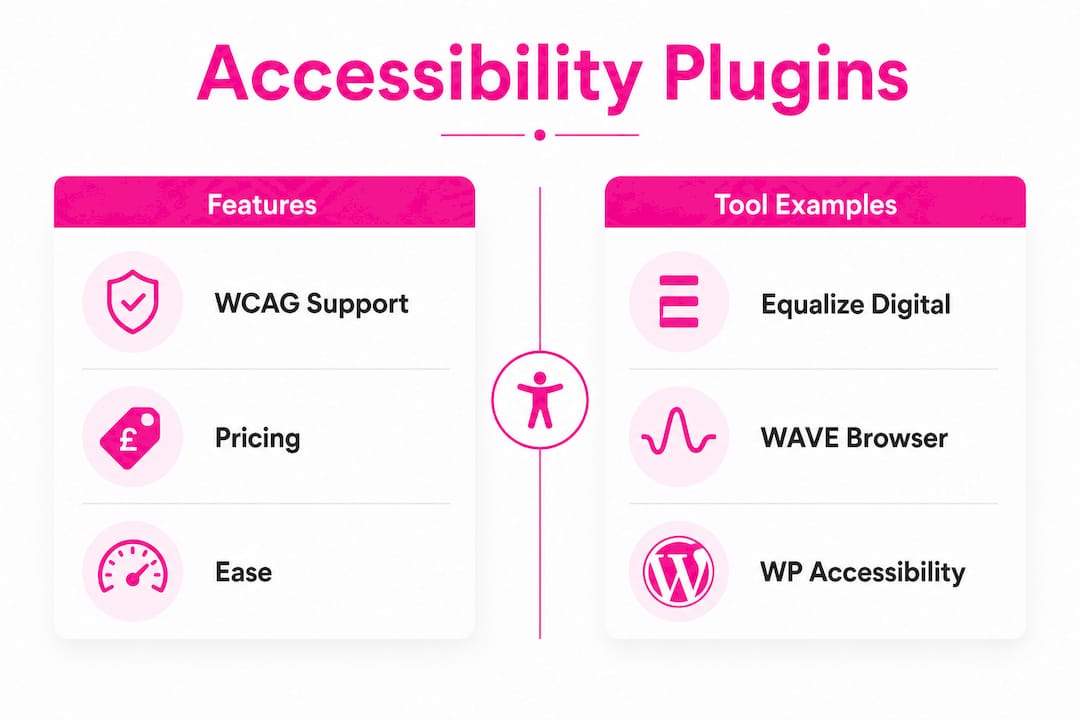
| Tool | Feature set | Pricing model | WCAG support | Ease of use | Best for |
|---|---|---|---|---|---|
| Equalize Digital Accessibility Checker | 40+ checks, automated fixes, statement generator, rendered-page scanning | Free tier; paid plans available | WCAG 2.2 A/AA/AAA | High, editor-integrated | WordPress owners wanting in-editor workflow testing |
| WAVE | Visual overlays, browser extensions, URL-based scanning, enterprise API | Free online tool; subscription API | WCAG 2.x errors and alerts | High for manual review | Web authors needing broad, visual accessibility evaluation |
| A11yScope | axe-core engine, fix-ready code snippets, no sign-up for basic scans | Free | WCAG 2.1 AA and 2.2 readiness | Very high, no setup needed | Quick automated checks without installation |
| Accessibility Toolkit | Dashboard-initiated scanner, accessibility toolbar, statement generator | Free; premium features available | WCAG 2.1 A/AA, Section 508 | Moderate | Site managers wanting widgets and code-level fixes together |
| AccessiYes by CookieYes | Accessibility toolbar, user-adjustable settings, front-end customisation | Freemium | WCAG-aligned | High for non-technical users | Sites needing front-end user accessibility customisation |
| Accessibility Widget by OneTap | Keyboard navigation enhancements, simple widget integration | Free | WCAG-aligned | Very high, minimal setup | Enhancing keyboard navigation with minimal configuration |
| Accessibility by AllAccessible | Automated scanning plus professional remediation advisory | Paid/consultancy | WCAG-aligned | Moderate | Owners wanting professional guidance alongside tools |
| WP Accessibility | Skip links, focus outlines, alt text enforcement, landmark fixes | Free | Theme-level WCAG improvements | High for developers | Developers fixing theme and CMS shortcomings at code level |
| One Accessibility | Monitoring, compliance-focused reporting, remediation guidance | Freemium | WCAG-aligned | Moderate | SMBs needing continuous compliance monitoring |
A few of these deserve a closer look beyond the table.
WAVE is the most widely used browser-based tool for manual review support. Its browser extensions for Chrome, Firefox, and Edge let you test dynamic pages and password-protected content that URL-based scanners cannot reach. It does not integrate into WordPress directly, but it works well alongside a plugin-based checker for a second opinion on rendered output.

A11yScope runs on the axe-core engine and requires no account for basic scans. It provides copy-paste fix code alongside each issue it finds, which makes it genuinely useful for developers who want a fast, independent check without installing anything. The absence of a WordPress integration means it works best as a spot-check tool rather than a workflow staple.
WP Accessibility takes a different approach entirely. Rather than scanning and reporting, it applies targeted fixes to common theme shortcomings: adding skip links, enforcing alt text in the classic editor, inserting focus outlines, and correcting missing language attributes. It is not a checker in the reporting sense, but it addresses a category of issues that scanning tools flag repeatedly without resolving automatically.
Accessibility by AllAccessible pairs automated scanning with professional consultancy, which suits site owners who want expert guidance rather than a DIY remediation workflow. For straightforward WordPress sites, the plugin-based tools above will cover most needs without the added cost.
UK accessibility law and what it means for your website
UK public sector websites must comply with the Public Sector Bodies (Websites and Mobile Applications) Accessibility Regulations 2018. These regulations require public bodies to meet the accessibility standard and publish an accessibility statement that is kept under regular review.
The legal framework in practice:
- Public sector bodies must make their websites and mobile applications accessible, meeting the standard set out in the regulations
- Accessibility statements are legally required for public sector sites, must be published in an accessible format, and must include details of any non-compliant content and the reasons why
- Regular review of the statement is a legal obligation, not a one-time task
- Disproportionate burden exemptions exist but require a formal assessment and must be documented in the statement
- Private sector sites are not covered by these specific regulations, but the European Accessibility Act (EAA) extends requirements to many commercial digital services across EU member states, and UK businesses trading with EU customers should be aware of its scope
- WCAG 2.1 AA is the technical standard referenced by the regulations; WCAG 2.2 (published as a W3C Recommendation in october 2023) builds on this and is increasingly the benchmark tools and auditors use
Beyond legal compliance, the practical case for accessibility is straightforward. Inaccessible sites exclude users with visual, motor, cognitive, and hearing impairments. In the UK, around one in five people lives with a disability, and designing for accessibility improves usability for everyone.
Best practices for ongoing compliance go beyond running a scanner:
- Schedule regular automated scans, particularly after theme updates, plugin changes, or major content additions
- Conduct manual keyboard navigation testing on every key user journey
- Test with at least one screen reader, such as NVDA (free) or JAWS, on your most visited pages
- Involve users with disabilities in periodic testing. Automated tools and manual checklists cannot replicate lived experience with assistive technology
- Document your remediation progress so your accessibility statement remains accurate and up to date
- Treat your accessibility statement as a living document, not a one-time publication
What the research says about automated accessibility testing
Automated accessibility checkers detect approximately 57% of WCAG issues; the rest require manual keyboard, screen reader, and visual testing. That figure is worth keeping in mind whenever a tool’s marketing implies otherwise.
The axe-core testing engine underpins many of the tools in this guide, including A11yScope and elements of the Equalize Digital Accessibility Checker’s checking logic. When axe-core cannot determine whether an issue is a genuine failure without human judgement, it returns an “incomplete” result rather than a false pass. That honesty is a feature, not a limitation.
Practical implications for your workflow:
- Use automated checkers as a worklist generator, not a compliance certificate. A clean automated report means you have addressed the detectable issues; it does not mean your site is fully accessible
- Shift-left testing (catching issues during content creation rather than after publication) is consistently more efficient. The Equalize Digital Accessibility Checker’s editor integration is specifically designed for this
- Theme and template-level issues are a common blind spot. Tools that scan only post content miss problems introduced by your theme’s header, footer, or sidebar. Plugins that scan rendered output, as the Equalize Digital Accessibility Checker does, catch these
- After any major theme or plugin update, run a full rescan. Changes to your site’s structure can introduce new issues even if your content has not changed
- For complex issues flagged as “incomplete” by automated tools, a practical remediation workflow involves: resolving all automated errors first, then conducting manual keyboard and screen reader tests on the flagged areas, then rescanning to confirm fixes
Pro Tip: Schedule a recurring scan after every significant site update and log the results. Tracking your issue count over time gives you a clear picture of whether your accessibility is improving, holding steady, or slipping. The Equalize Digital Accessibility Checker’s dismiss workflow with timestamps makes this kind of progress tracking practical without extra tooling.
Automated testing can also be integrated into continuous integration and deployment pipelines using the axe-core npm package, which suits development teams who want accessibility checks built into their release process rather than handled separately. For most WordPress site owners, the plugin-based approach above is the more practical starting point, with CI integration as a next step for larger or more complex projects.
Learning to automate client website checks as part of a broader quality workflow can save considerable time, particularly for agencies managing multiple sites. The principle is the same whether you are checking for accessibility issues or content errors: catching problems before publication is always less costly than fixing them after.
Key takeaways
The Equalize Digital Accessibility Checker is the strongest integrated option for UK WordPress sites, combining real-time editor scanning with WCAG 2.2 support and automated fixes.
| Point | Details |
|---|---|
| Best integrated checker | Equalize Digital Accessibility Checker runs 40+ WCAG 2.2 checks directly inside the WordPress editor with automated fixes. |
| Automated tools have limits | Automated checkers detect approximately 57% of WCAG issues; manual keyboard and screen reader testing covers the rest. |
| UK legal requirements | Public sector bodies must publish and regularly review an accessibility statement under the 2018 Accessibility Regulations. |
| Complement with manual testing | Involve users with disabilities in periodic testing; no automated tool can replicate lived experience with assistive technology. |
| Websitespellchecker for content quality | Websitespellchecker scans your entire site for spelling and grammatical errors, complementing accessibility tools with a content quality check. |
Your WordPress site’s content quality deserves the same attention as its accessibility
Accessibility tools catch structural and code-level barriers. But spelling mistakes, grammatical errors, and unclear phrasing chip away at trust just as quietly, and they are easy to miss when you are focused on compliance work.
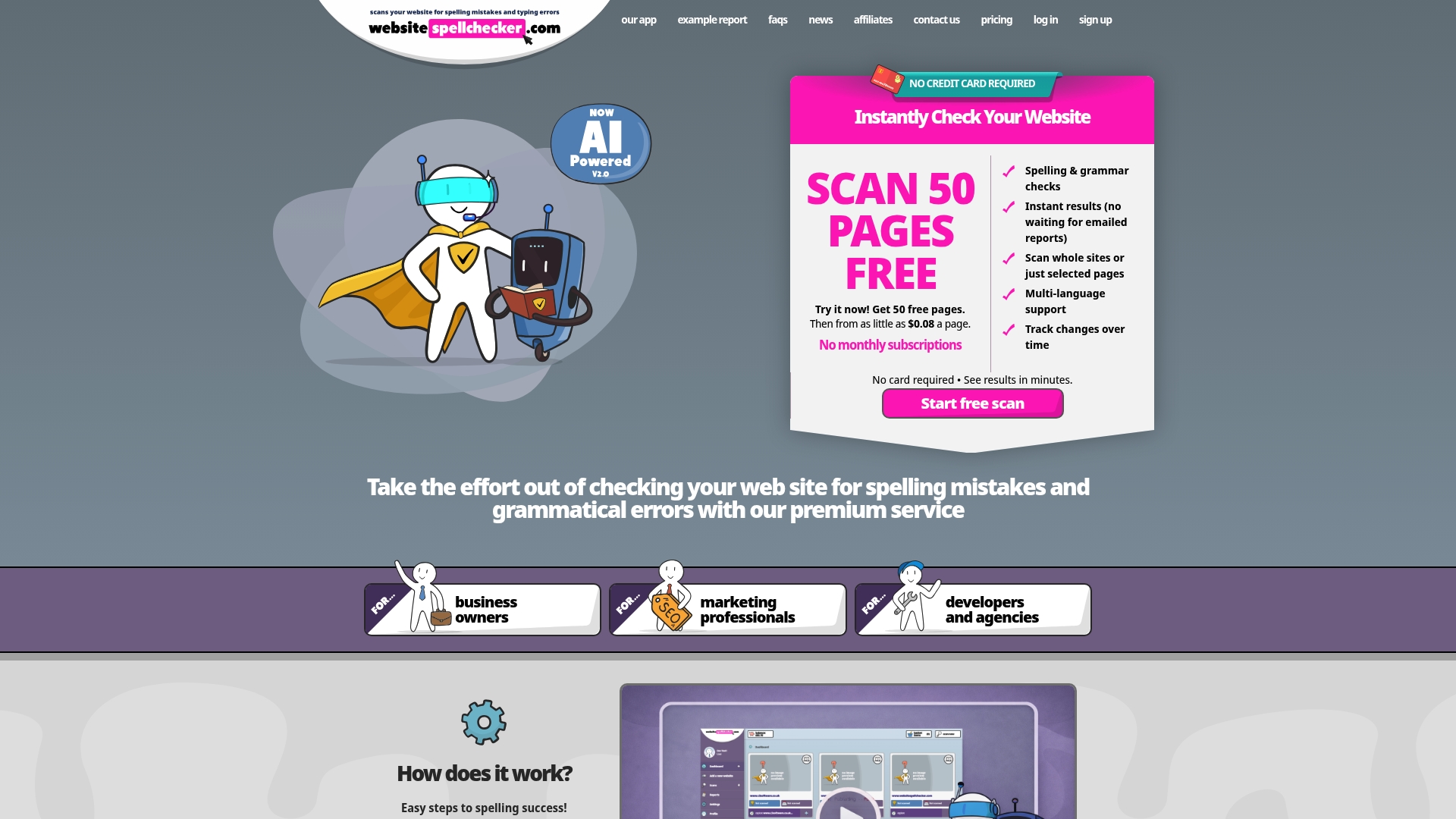
Websitespellchecker is a different kind of quality tool. It scans your entire website for spelling mistakes, grammatical errors, awkward phrasing, and missing words in one automated pass, with instant results and no monthly subscription. You pay only for what you scan, and you get a detailed, downloadable report you can act on straight away.
If you have just finished an accessibility audit and want to make sure your content is as polished as your site structure, a free website spell check is a practical next step. For business owners who want ongoing content quality monitoring, the business owner plan covers your whole site on demand, with scan history so you can track improvements over time.